
Help & support
Common questions
How do I reset a forgotten password?
Choose the password-reset option on the sign-in screen and follow the instructions sent to your registered account contact. Use the newest reset link. If you cannot access that contact, ask support for the available recovery process.
How do I create or join an organization?
Use the organization options to create a workspace or join an existing one. Your employer may provide an invitation link, QR code, or organization code. Confirm the organization name before submitting a join request.
Show mobile app steps
Mobile app example using demo data. Web screens may look different.
Open your employer's invitation link in the mobile app. Check the organization name, then tap Request to join. 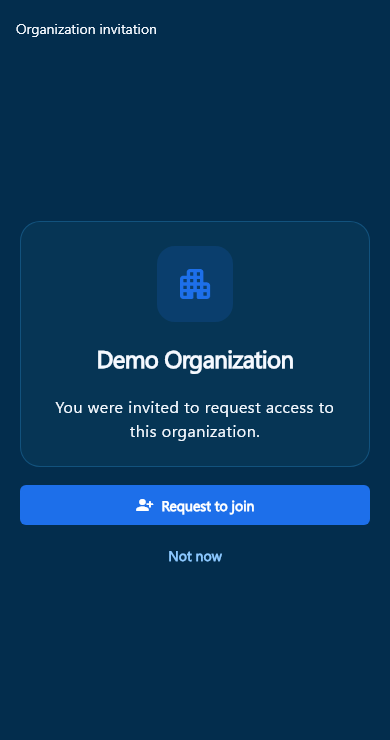
If you reopen the invitation while waiting, Request pending means your request is already sent. Wait for your organization's approval; do not submit it again. 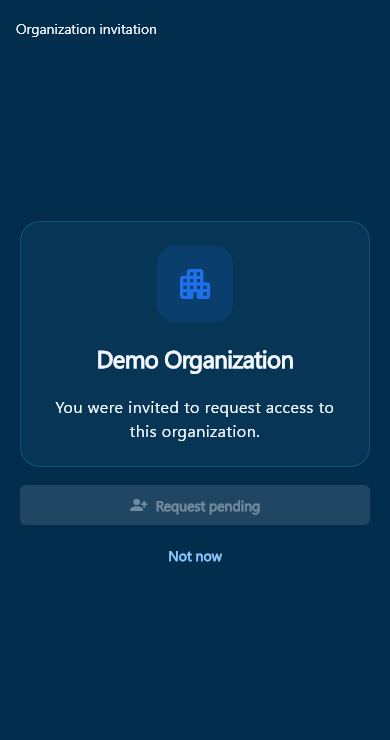
How do I clock in and clock out?
Select the correct organization, open My Attendance, and use Clock In or Clock Out when available. Complete any required device, location, or biometric checks. Wait for confirmation and check the record before leaving the screen.
How do I request approval for my phone?
Open Attendance Devices or follow the Request device approval action in My Attendance. Submit the request for the selected organization and wait for an authorized approver. Installing the app or signing in does not by itself approve a phone.
Show mobile app steps
Mobile app example using demo data. Web screens may look different.
Select the correct organization and open Attendance device. Tap Request device approval on the phone you will use to clock in. 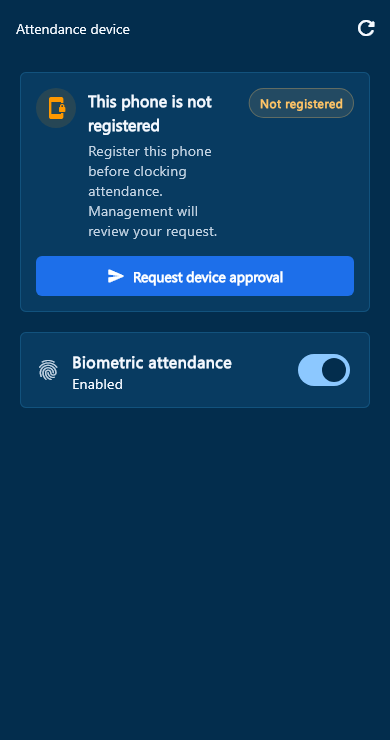
Read the confirmation and tap Request approval to send the request to management. Cancel leaves the phone unregistered. 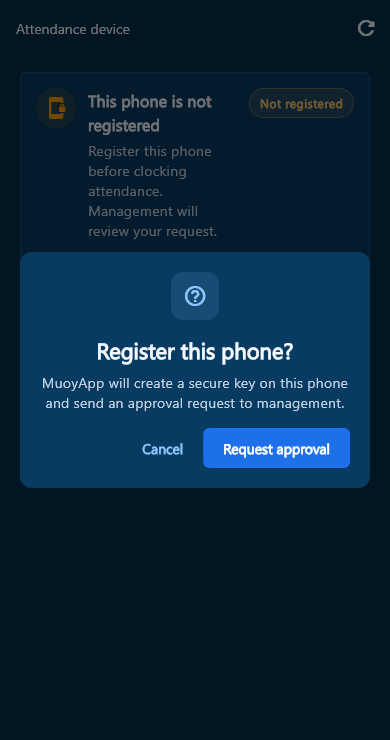
Waiting for approval confirms the request was sent. Use Check approval status later, or contact your organization's approver if you need help. 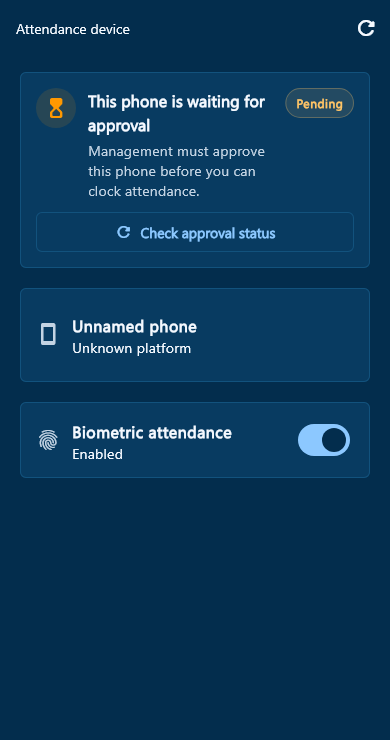
How do I request leave?
Open your leave requests, choose the leave type and dates, and complete the required details. Review the request before submitting it. A submitted request is not approved until its status shows approval.
Why do I get a badge but no alert when the app is closed?
Check MuoyApp's notification preferences and the device's notification permission and restrictions. Sign in, confirm your connection, and try again. If alerts still fail, send support your app version, device model, and the time of an example notification.
How do I request deletion of my account?
Use the account-deletion option in account settings or the published account-deletion page. Complete the required verification and read the affected-data warning. A pending verification is not the same as a confirmed, scheduled deletion.
Should I contact my organization or MuoyApp support?
Contact your organization about schedules, attendance corrections, device approval, leave, permissions, and payroll decisions. Contact MuoyApp support about account-access problems or technical faults. Use the verified contact published in Help & Support; response arrangements depend on that support channel.
Contact support
For schedules, attendance corrections, device approval, leave, permissions, or payroll, contact your organization administrator.
For account access or technical problems, contact MuoyApp support.
support@saambok.com