
Help & support
Questions (108)
Clear filtersWhat is MuoyApp?
MuoyApp brings people management, attendance, schedules, leave, tasks, and workplace communication into an organization workspace. The tools you can use depend on your role and the features available to your organization.
Who can use MuoyApp?
Employees can manage their own work information. Managers and organization administrators can manage team information according to their permissions. People exploring the service can use this Help Center before creating an account.
Can I use MuoyApp on a phone or computer?
MuoyApp has web and mobile interfaces. Use the official website and the app download links published by MuoyApp; availability can vary by platform and release. Attendance may require an approved phone even when other features work in a browser.
Why do I see different menus from a colleague?
Menus depend on your selected organization, role, permissions, plan, and app version. Check those first rather than creating another account. Ask your organization administrator if you believe a required feature is missing.
Does MuoyApp work without an internet connection?
Use a working internet connection for actions such as clocking attendance, sending messages, and submitting requests. Do not assume an action was saved while offline; reconnect and confirm that the record or success message appears.
How do I create an account?
Choose the registration option on the sign-in screen, provide the requested information, and complete the verification shown. If your employer already invited you, use that invitation so you join the correct organization.
What should I do if a verification code or email does not arrive?
Check that your email address or phone number is correct, check your spam folder for email, and wait for any resend countdown. Use the resend option when available. Never share verification codes with another person.
How do I reset a forgotten password?
Choose the password-reset option on the sign-in screen and follow the instructions sent to your registered account contact. Use the newest reset link. If you cannot access that contact, ask support for the available recovery process.
Can I sign in with Google, Facebook, or Telegram?
Use the provider options that appear on your sign-in screen. Complete the provider's confirmation and return to MuoyApp. If the flow stalls, check the provider app or browser for an approval prompt and retry from MuoyApp.
Why does MuoyApp say my email or phone number is already in use?
An account may already exist with that contact information. Try signing in or recovering the existing account. If an administrator is adding you as an employee, ask them to link your existing account instead of creating a duplicate.
How do I create or join an organization?
Use the organization options to create a workspace or join an existing one. Your employer may provide an invitation link, QR code, or organization code. Confirm the organization name before submitting a join request.
Show mobile app steps
Mobile app example using demo data. Web screens may look different.
Open your employer's invitation link in the mobile app. Check the organization name, then tap Request to join. 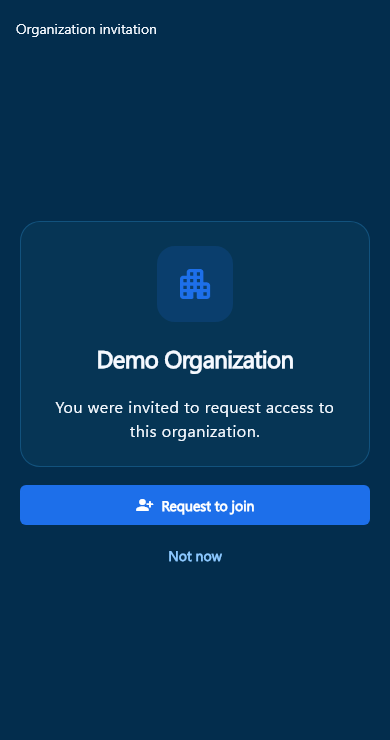
If you reopen the invitation while waiting, Request pending means your request is already sent. Wait for your organization's approval; do not submit it again. 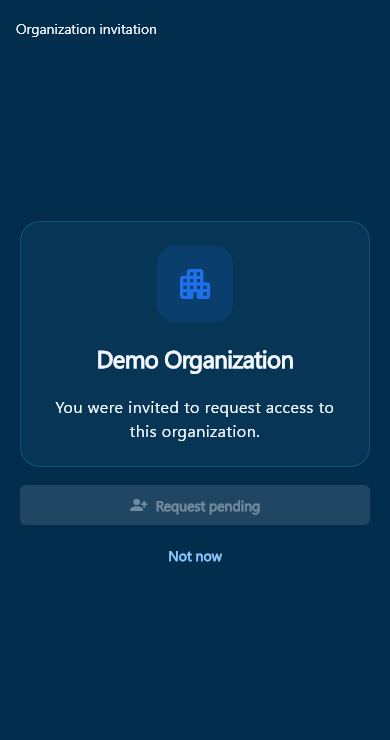
Why is my organization invitation or join request not working?
A request may need administrator approval, or the invitation or code may no longer be valid. Check the request status and ask an organization administrator for approval or a fresh invitation. Avoid submitting repeated requests.
How do I switch between organizations?
Use the organization selector and choose the workspace you need. Check the selected organization before clocking in, sending a message, or editing records; information and permissions belong to the relevant workspace.
How many organizations can I create, and can I reuse a name?
Creation limits depend on your current plan; check the allowance shown in organization management or billing. Organization names must be unique across MuoyApp. Changing only capitalization or extra spaces does not make an existing name available.
Is leaving an organization the same as deleting my account?
No. Leaving or being removed from an organization changes your membership, not automatically your entire account. Account deletion is a separate process with much wider consequences, especially for organizations you created. Read the deletion warning before confirming.
What is the difference between an employee, manager, and organization administrator?
An employee normally works with their own records. A manager has the team responsibilities and permissions assigned to them. An organization administrator manages the workspace. The exact actions available depend on permissions, not just the job title.
Is an application administrator the same as my organization administrator?
No. An organization administrator manages an organization. An application administrator manages platform-wide settings, such as notification cleanup and account-deletion grace periods. Ask your organization administrator first about your employment records.
Who can see or change my work information?
Access depends on the organization, feature, and permissions assigned to the viewer. Your own access may differ from your manager's. Ask your organization administrator who is authorized to view or maintain a particular record.
How do I give someone access to a team feature?
Review their organization membership and the relevant module permissions. Grant only the actions needed for their responsibilities, then ask them to refresh the app. A department or job-title change alone should not be assumed to grant all management access.
Why do employee counts or lists look different?
Check the selected organization, date, search text, status filters, and your permissions. A list of active employees can differ from a directory that includes inactive employees. If the same scope still shows different results, report both screens to support.
How do I add an employee who already has a MuoyApp account?
Use Add people and search for the existing account. Confirm the person before linking their employee profile and sending any required invitation. Avoid creating another account for the same person.
How do I invite a new employee?
Use Add people to enter the required employee details and send the available invitation. Check their contact information and employment start date. The employee should complete the invitation and account verification rather than share a password with you.
Why is the employment start date important?
Attendance calculations and reminders should begin from the employment start date, including that day, rather than from an earlier pay-period date. Enter the correct start date when adding the employee and review it if pre-employment days appear in attendance totals.
How are onboarding and offboarding different?
Onboarding organizes the work needed when someone joins. Offboarding organizes their departure and related access or employment changes. Review the available checklist and final confirmation before completing either process.
How do I update an employee's department, position, or status?
Open their employee profile and use the available edit, promotion, or status actions. Review the effective date and any related schedule or permission changes. Making someone inactive is not the same as deleting their personal MuoyApp account.
What should I set up before my team starts using attendance?
Review the work location, organization timezone, business hours, attendance rules, and default schedule. Check the attendance setup screen for unfinished sections, then test with an employee account before relying on the records.
Where do I set working days and business hours?
Open the organization's schedule or business-hours settings. Set the working days, opening time, and closing time, then review any department or employee overrides. Tell affected employees when their working schedule changes.
Why is the attendance time different from my phone's time?
Attendance uses the organization's configured timezone for its schedule and business-day context. Your phone may use another timezone. Check the organization shown on the screen and ask an administrator to correct its timezone if necessary.
How do I choose the work location on the map?
Open the work-location settings and use the map or available search controls. Check that the selected pin is on the actual workplace, then review the permitted attendance area before saving. Your current GPS location is only useful if you are at that workplace.
What if the map is blank or the location pin is wrong?
Check the internet connection and location permission, then reopen the map. Use search or move the pin if available, and verify the street and building before saving. Do not save an unverified location just to finish setup.
How do I clock in and clock out?
Select the correct organization, open My Attendance, and use Clock In or Clock Out when available. Complete any required device, location, or biometric checks. Wait for confirmation and check the record before leaving the screen.
Why is Clock In unavailable?
Read the status above the button. You may be outside the allowed clock-in window, have no applicable schedule, need phone approval, or already have an open attendance record. Ask your administrator about the specific reason shown.
Can I clock in early, without a schedule, or while working remotely?
These actions depend on your organization's attendance rules. An early-clock-in or unscheduled-day allowance does not automatically remove location or device requirements. Ask an administrator to confirm the policy for your work arrangement.
Why does attendance need my location?
Your organization may require a location check when you clock attendance. Enable the requested permission and use your real location. If you are at the workplace but still blocked, report the location message rather than trying to bypass the check.
What should I do if I forgot to clock out or an action failed?
Check My records first to see whether the action was saved. If a record is open or incorrect, contact your manager with the date and actual times. Do not repeatedly clock in or create another account to work around the problem.
How do I request approval for my phone?
Open Attendance Devices or follow the Request device approval action in My Attendance. Submit the request for the selected organization and wait for an authorized approver. Installing the app or signing in does not by itself approve a phone.
Show mobile app steps
Mobile app example using demo data. Web screens may look different.
Select the correct organization and open Attendance device. Tap Request device approval on the phone you will use to clock in. 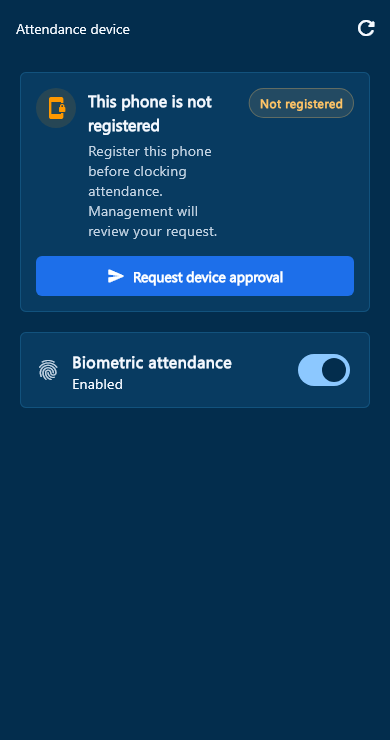
Read the confirmation and tap Request approval to send the request to management. Cancel leaves the phone unregistered. 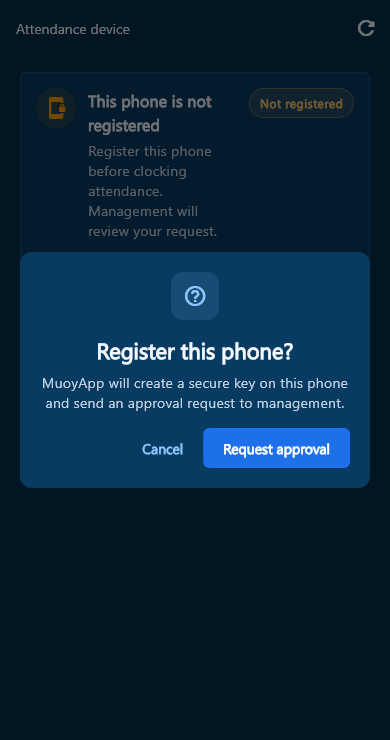
Waiting for approval confirms the request was sent. Use Check approval status later, or contact your organization's approver if you need help. 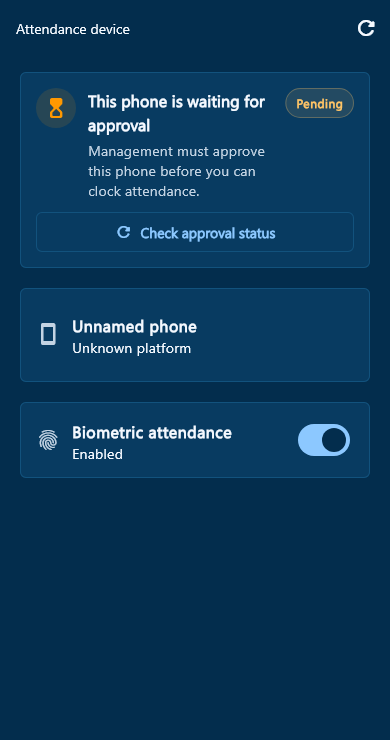
Who approves my device, and how long will it take?
Approval is handled by the authorized people in your organization. Check your request status and contact your administrator if it is still waiting. Approval times depend on your organization.
What happens if I replace, lose, or reinstall my phone?
You may need to register and approve the device again. Tell your administrator if the old phone is lost and ask them to review its attendance approval. Do not assume an approval transfers to a replacement phone or a new installation.
Are fingerprint or face checks required for attendance?
Follow the requirement shown in the app; biometric confirmation can depend on the active attendance security settings. Phone approval and biometrics are separate checks. If your device cannot complete a required check, contact your administrator.
Can I use a browser or another organization after my phone is approved?
You can use browser features your account is allowed to access, but enforced attendance-device rules can require the approved mobile app for clocking. Device approval is organization-specific; check the status again when switching organizations.
Where can I see my schedule?
Open your schedule or calendar in the selected organization. Check the date and assigned times. If nothing appears, ask your manager whether a schedule or organization working-hours fallback applies to you.
Which schedule takes priority when several apply?
The schedule resolver checks employee dated schedules, employee fixed schedules, department schedules, and then organization business hours. Review the more specific schedule first when the displayed times differ from the organization's default.
Why did my calendar change after an administrator updated settings?
Your calendar can reflect updated schedules, leave, and organization working hours. Refresh the selected date and ask your manager to confirm the effective schedule. An updated schedule should not be treated as proof that an old attendance record was corrected.
How do I browse a different day or date range?
Use the calendar arrows, day selector, or date-range controls available on that screen. Today returns to the current date. Check the selected period before interpreting totals or exporting records.
How should I check a shift that continues after midnight?
Review both the scheduled start and end times in the organization's timezone. A shift can finish on the following day. If the calendar grouping is unclear, ask your manager to check the full attendance record instead of assuming the shift ended at midnight.
Where do I find my attendance history?
Open My Attendance and choose My records. Select the date or period you want to review. Team records are a separate view for people with the required team permissions.
What do present, late, absent, and on leave mean?
These labels summarize attendance against the applicable schedule and leave information. Late indicates a timing issue, while absent can indicate expected work without a recorded attendance entry. Open the record and check the schedule before drawing conclusions from a summary alone.
Does an overtime or late flag automatically change my pay?
A flag identifies attendance that needs interpretation or review. It is not, by itself, confirmation of approved overtime, a deduction, or a final pay amount. Ask your organization about its approval and payroll rules.
Why am I seeing attendance for days before I started work?
Ask an administrator to check the Start Date on your employee profile and the selected report period. Attendance summaries should exclude dates before a recorded employment start date. Older profiles without a start date may need that information added.
How do I correct an attendance record?
Send the date, recorded times, correct times, and reason to your manager or authorized attendance administrator. They can review the available correction tools. Refresh My records after the correction and check that the intended record changed.
How do I request leave?
Open your leave requests, choose the leave type and dates, and complete the required details. Review the request before submitting it. A submitted request is not approved until its status shows approval.
Can I request a half day or only part of a day?
Use the partial-day option offered in the leave form and check its time window. Available choices depend on the leave setup and your schedule. Confirm the selected hours instead of assuming that a half day always has the same times.
Why is my leave balance missing or different from what I expected?
Balances depend on the leave type and entitlement recorded by your organization. Check the selected organization and period, then ask your administrator to review your entitlement and requests. The app does not decide your employment benefits independently of that setup.
Can I cancel or change a leave request?
Open the request and use the actions available for its current status. If the dates or details cannot be changed there, ask your approver how to correct it. Check the final status before submitting a replacement request.
Who reviews leave requests?
Requests are routed according to organization permissions and approval rules. Review the assigned request and its dates before deciding. If the expected approver cannot see it, check their permissions and the request's current status.
Where do I find tasks assigned to me?
Open My tasks or the personal view in Tasks. Check the selected organization and any status or project filters. Team tasks may require additional permissions.
How do I create or assign a task?
Use the task creation option if you have permission. Enter the task details, choose the correct organization and assignees, and review any due date or project association before saving.
What do To Do, In Progress, Review, and Done mean?
These statuses describe a task's workflow. Review means the task needs the applicable review step; it is not the same as Done. Use the status actions allowed for your role and confirm the change was saved.
How are projects related to tasks?
Projects group related tasks where that feature is available. Use the project and status filters to focus your task list. A project does not replace the assignee or due date recorded on an individual task.
Why can I no longer see or edit a task?
The task may have changed status, assignee, or organization scope, or your permissions may have changed. Clear filters and refresh. Ask the task owner or administrator if the task is still missing.
How do I send a message?
Open Messages, choose an available conversation or recipient, and send your message. Check the organization and recipients before sharing work information. Wait for the message to appear as sent before assuming it was delivered.
Can I send photos, documents, or voice messages?
Use the attachment or recording controls available in the conversation. Grant camera, file, or microphone permissions only when needed, and wait for uploads to finish. Accepted formats and sizes can vary by feature.
What should I do when a message or upload fails?
Check the connection and whether the message already appears in the conversation before retrying. For an attachment, also check its type, size, and access permission. Report repeated failures without including private message content unnecessarily.
Does clearing a notification mark my conversation as read?
Automatic notification cleanup does not mark conversations as read. Message notifications are protected from age-based cleanup. Open the conversation to review its messages; a notification badge and a conversation's unread state are separate.
Who should I contact about an inappropriate or unexpected message?
Check the conversation and organization first. Contact your organization administrator or support with enough information to identify the issue, and avoid forwarding sensitive content to unrelated people. Do not assume messages are anonymous or end-to-end encrypted.
What is the feed used for?
The feed lets users share posts and interact with content in the available feed scopes. Check whether you are posting to a personal, organization, or community context before sharing information.
How do I join or leave a community?
Open the community and use its available membership controls. Community membership is separate from organization membership. Check the community's purpose and rules before posting.
Can I edit or delete a post or comment?
Open the item's action menu and use the edit or delete options you are allowed to use. Availability depends on authorship, permissions, and the content's context. Read any deletion confirmation carefully.
Why is a post missing?
Check your feed filters, selected organization, and community membership. The post may have been removed or may no longer be available to your account. Contact the author or moderator when appropriate.
What information should I avoid posting?
Do not post passwords, verification codes, identity documents, payroll details, or private employee information to a broad audience. Use the appropriate restricted workflow and follow your organization's information-sharing rules.
Where can I find job opportunities?
Use the Jobs area if it is available in your version of MuoyApp. Open a listing to review the employer, role, and application requirements. Job availability depends on what employers have published.
How do I apply for a job?
Open the job listing and use its application option. Review your contact details and requested application information before submitting. Applying for a job does not automatically make you an employee or organization member.
How can I check my application status?
Open your applications and review the status recorded for the listing. The employer manages its hiring decisions and response time. Contact the employer through its stated recruitment channel if you need an update.
How do organizations manage job listings and applicants?
Authorized users can use the available recruitment tools to manage listings and review applications. Check organization permissions and feature availability if the tools are missing. Keep applicant information limited to the people involved in recruitment.
Does MuoyApp guarantee a job or verify every employer's claims?
Do not treat a listing or application status as a job guarantee or independent confirmation of an employer's claims. Review the opportunity carefully and use the employer's official contact details before sharing sensitive information.
Where should I upload a work document?
Use the document or attachment control for the relevant employee, conversation, or organization workflow. Check the destination before uploading. A work document associated with an organization is different from a personal account document.
Why is a file upload rejected?
Check the file type, file size, storage allowance, and your permissions. Different upload features can enforce different limits. Follow the limit shown for that upload; do not assume one file-size limit applies everywhere.
Why can I no longer open an attachment or document?
You may have lost access to its organization or conversation, or the file may have been removed. Confirm that you are signed in to the right account and workspace. Ask the owner or administrator before requesting another copy.
How do I export a report?
Open the relevant report, choose the organization and date filters, and use Export if available to your role and plan. Check the exported period and columns before sharing it. Downloaded files must be handled according to your organization's rules.
Does deleting a file or record always free storage immediately?
Do not rely on an immediate storage change. Cleanup can happen after the underlying record is removed, and a file still referenced elsewhere may be retained. Review storage usage again later and contact support if the difference persists.
Where can I see my payslip?
Open Payslips if it is available to your account and organization. Check the pay period. If a payslip is missing, ask payroll whether it has been published and linked to your employee profile.
What should I do if a payslip amount looks wrong?
Contact your organization's payroll administrator with the pay period and the item you believe is incorrect. They should review the recorded pay details, attendance, leave, and adjustments. MuoyApp support cannot decide your salary or employment entitlements.
What should I review before generating payroll?
Review payroll readiness, including missing clock-outs, attendance flags, pending leave, schedules, and salary or rate setup. Resolve blocking issues and review warnings before continuing. A readiness result is not a substitute for your organization's payroll approval.
Does a payslip marked Paid mean MuoyApp transferred money to my bank?
Do not assume that a recorded payment status proves a bank transfer. Confirm the actual payment with your employer and the payment method they use. Payroll records and the movement of money are separate concerns.
Why is Payroll unavailable to my organization?
Check both the organization's feature entitlement and the user's payroll permissions. A plan upgrade alone does not automatically give every employee access to payroll management. Ask the organization administrator to review the configuration.
How much does MuoyApp cost?
Check the plan and pricing information in MuoyApp or your agreed order details. Prices, billing intervals, features, and limits depend on the plan you choose.
What does an organization plan control?
A plan can control feature access and allowances such as employees, records, storage, history, or organization creation. Read the actual limits shown for your subscription instead of assuming all plans include the same features.
How do I change my plan, and when does a change take effect?
Use the available billing options or contact the designated billing contact. Review the invoice, effective date, and confirmation before proceeding. Selecting a plan or starting a payment is not proof that the change is active.
What should I do if a payment is pending or appears to have failed?
Check the invoice status and payment confirmation before paying again. Keep the payment reference and contact billing support if the statuses disagree. Use only the payment methods offered by the current billing flow.
Can I downgrade, cancel a subscription, or request a refund?
Check your current subscription terms and contact billing support about the available process and effective date. Review any lower limits before changing plans. Do not use account deletion as a substitute for confirming subscription cancellation or refund eligibility.
What is the difference between an in-app notification and a push notification?
An in-app notification appears in MuoyApp's notification history. A push notification is an alert delivered through your phone or browser's notification system. Seeing an in-app badge does not by itself confirm that a push alert was delivered.
Why do I get a badge but no alert when the app is closed?
Check MuoyApp's notification preferences and the device's notification permission and restrictions. Sign in, confirm your connection, and try again. If alerts still fail, send support your app version, device model, and the time of an example notification.
Can I choose which notifications I receive?
Use the notification preferences available in MuoyApp and your device settings. Some security or account alerts are protected and may not follow ordinary category preferences. Attendance reminder preferences are separate where offered.
Why did an old notification stop showing as unread?
When automatic cleanup is enabled, selected older updates and approval results can stop contributing to unread badges. Attendance reminders can clear after their shift ends. History remains, and automatic clearing does not mean you read the item. Messages, pending actions, security, and payroll alerts are not cleared just because they are old.
Why does tapping a notification not open the expected page?
The linked item may have been removed, resolved, or become inaccessible, or your app may need updating. Check the organization and open the relevant section directly. Report the notification type and what happened, without sharing private content unnecessarily.
What information does MuoyApp use?
MuoyApp processes the account and work information needed for the features you use, including organization, employment, attendance, and communication information. Read the published Privacy Policy for the service's full explanation and contact details.
How do I request deletion of my account?
Use the account-deletion option in account settings or the published account-deletion page. Complete the required verification and read the affected-data warning. A pending verification is not the same as a confirmed, scheduled deletion.
Can I cancel a deletion request if I change my mind?
Use Cancel deletion while your request remains cancellable, before permanent deletion is completed. Check the scheduled date shown on your request rather than relying on a fixed number of grace days. Do not wait until the deadline to cancel.
What happens to organizations I created if I delete my account?
Permanent account deletion also deletes organizations you created and their associated records and stored uploads. Other members can be affected even if another administrator exists. Do not proceed if the organization must continue; contact support to discuss the available options first.
What happens to employment records in organizations I only joined?
Those organizations remain, and their employment records, organization documents, and work attachments can stay with them after your account is deleted. Deleting your personal account is not a request to erase every employer-managed record. Contact the organization about its records.
Why must I appoint another administrator before deleting my account?
If you are the last active administrator of an organization you did not create, another active administrator may be required before deletion. This protects that organization's ability to operate. It does not protect creator-owned organizations from the deletion described above.
Does signing out or uninstalling the app delete my account?
No. Signing out ends your use of the current session, and uninstalling removes the app from that device. Use the separate account-deletion process if you intend to delete the account and review its consequences.
Can a permanently deleted account be restored, and are all copies erased instantly?
Treat completed deletion as irreversible. Cancel your request before permanent deletion if you change your mind. Backups and files downloaded by other people may remain; check the Privacy Policy or contact support about retention.
How do I change the language or appearance?
Use the language and appearance options available in your profile or settings. MuoyApp includes English and Khmer interface text. If a label is untranslated or difficult to read, report the screen and language you were using.
What can I do if text is cut off or the layout is difficult to use?
Update the app or refresh the website, and try the relevant device text-size settings. Report the screen, device or browser, language, and text size if the issue remains. Include a screenshot with private information covered.
How do I update MuoyApp?
Use the official update option or store link offered for your installed app. For the website, refresh after an update. If an update is required but unavailable, contact support with the version shown rather than downloading an app from an unverified source.
What details should I include when reporting a problem?
Include the feature, selected organization, approximate time and timezone, app version or browser, expected result, and what actually happened. Add reproducible steps and a redacted screenshot if useful. Never send passwords, verification codes, or private keys.
Should I contact my organization or MuoyApp support?
Contact your organization about schedules, attendance corrections, device approval, leave, permissions, and payroll decisions. Contact MuoyApp support about account-access problems or technical faults. Use the verified contact published in Help & Support; response arrangements depend on that support channel.
Contact support
For schedules, attendance corrections, device approval, leave, permissions, or payroll, contact your organization administrator.
For account access or technical problems, contact MuoyApp support.
support@saambok.com